

 + points earned!
“Speak, Move, Look, Control” Assistive Technology for Everyday Independence
- 26 August 2026
- HNF Caregiving, contribution from Yen, caregiver of loved one with complex needs
For a person living with stroke-related weakness, arthritis, tremors, paralysis or limited movement, everyday technology may no longer be straightforward. A touchscreen that once required one tap may now feel completely inaccessible.
Assistive technology offers other ways to interact with the world — through the voice, head, chin, eyes, switches or even gentle sips and puffs of air.
The aim is not to fill the home with expensive gadgets. It is to help the person regain control over the parts of daily life that matter to them.
A useful starting question
What does your loved one want to be able to do independently?
Start with the person — not the product
A device may look impressive in a demonstration video, but the right solution begins with a clear, practical goal. Perhaps your loved one wants to call a family member, watch a programme, type an email, control the bedroom light or communicate without waiting for help.
Once the goal is clear, consider which abilities remain reliable:
- Can the person speak clearly and consistently?
- Can they move their head, chin, foot or one finger?
- Can they focus their eyes on a screen?
- Can they sip and puff through a small tube?
- Can they understand and remember a sequence of commands?
There is no single “best” assistive device. The right solution is the one the person can use comfortably, consistently and safely.
Four ways technology can help:
|
SPEAK Voice control for phones, tablets and computers |
MOVE OR PRESS Switches, head tracking, chin control and sip-and-puff |
|
LOOK Eye-gaze technology for communication and device access |
CONTROL THE ROOM Smart lights, fans, plugs and other environmental controls |
Singapore availability check: Product examples in this article were reviewed in August 2026. Some are sold or available for trial locally; specialised devices may require an assessment, quotation or international order. Confirm current stock, delivery, compatibility, GST and warranty before purchase.
1. Speak: controlling devices by voice
For someone who has limited hand movement but can speak clearly, voice control may be the easiest place to begin. With training, these devices can learn and adapt to accents. This form of tech is helping users control the screen and not through a new interface, so it will be easier to those who are already familiar with their devices.
Apple Voice Control
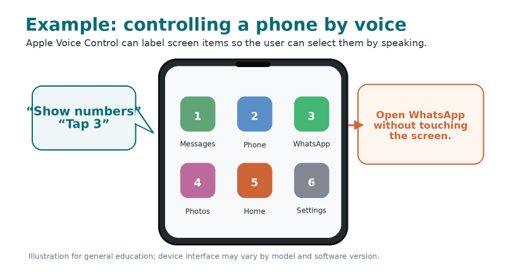
Voice Control allows a person to operate an iPhone or iPad using spoken commands. The user can open applications, tap visible buttons, scroll, dictate messages and navigate the screen without touching it.
Availability in Singapore (checked August 2026): Apple Voice Control for iPhone, iPad and Mac is built into Apple devices sold locally. Windows 11 Voice Access is built into Windows 11 PCs. Dragon Professional v16 is paid software available through Nuance, which provides Singapore sales and support channels. Check language support and system requirements before purchase.
Other voice assistants and language options. Apple Voice Control is a device-accessibility feature for navigating an iPhone or iPad. Smart speakers such as Google Nest Hub and Xiaomi Smart Speaker are mainly used to obtain information and control compatible smart-home devices, rather than to fully navigate a phone screen. Models sold in Singapore generally support English through Google Assistant. For Mandarin-speaking users, China-market Xiaomi XiaoAI (小爱同学) speakers can be purchased from Singapore-based importers, but they are not officially supported locally and may require the Xiaomi Home app and device region to be set to Mainland China. The global Xiaomi Smart Speaker models sold by Xiaomi Singapore use Google Assistant instead of XiaoAI.
Mandarin note: Imported XiaoAI devices may have limited local warranty, service and regional compatibility. For a simpler Singapore setup, consider a locally sold Xiaomi Smart Speaker or Google Nest device and confirm the supported voice language before purchase
|
|
How to enable it Settings → Accessibility → Voice Control → Set Up Voice Control |
After the initial setup files have been downloaded, Voice Control can work without an internet connection. Start with the two or three actions the person uses most frequently, then add more commands gradually.
|
Say this |
What happens |
|
“Open WhatsApp” |
Opens the application |
|
“Tap Messages” |
Selects the named item |
|
“Show numbers” |
Labels selectable items with numbers |
|
“Show grid” |
Places a numbered grid over the screen |
|
“Swipe up” |
Scrolls the page |
|
“Type I will call you later” |
Dictates the sentence |
|
“Delete that” |
Deletes the latest text or selection |
|
“Go home” |
Returns to the Home Screen |
|
“What can I say?” |
Displays available commands |
Voice-controlled computers
Speech-recognition tools can allow a person to dictate documents and operate a computer using spoken commands. Examples include Dragon Professional v16 for Windows, the built-in Voice Access feature in Windows 11, and Apple Voice Control for Mac. Depending on the software, users may be able to open applications, browse the internet, write and edit documents, send emails and select items on the screen using their voice.
These tools may help someone continue working, studying, writing or communicating through a computer. They generally work best when the user has reasonably clear and consistent speech.
Voice control may be less suitable for someone who becomes breathless easily, has significant speech difficulties or finds it difficult to remember commands. Voice control is challenging for people with ventilated tracheostomy, because the clarity of the voice is marred by the air exhalation from the tube.
Dragon Professional v16 — paid speech-recognition software for Windows 10 and 11. It supports voice dictation, text editing and computer commands. This is more suitable for users who need extensive computer access for work, study or regular writing.
Windows 11 Voice Access — a free, built-in accessibility feature that allows users to open applications, browse the web, write emails and control the computer using their voice. It can work without an internet connection after setup.
Apple Voice Control for Mac — a built-in feature that allows users to navigate applications, select screen items, and dictate and edit text using voice commands. After the initial download, it can also work offline.
2. Move or press: switches, head movement and breathing
When speech control is not suitable, the person may still be able to operate technology through another reliable movement.
Switch access
Switch access allows a person to control a phone, tablet or computer without directly tapping the screen. Accessibility software scans through the available items by highlighting them one at a time. The user activates a physical switch when the required item is highlighted.
Examples include the AbleNet Jelly Bean Twist pressure switch, the wireless Blue2 FT or iSwitch, and contact-free proximity switches such as ToFFEE BT. Some switches connect directly through Bluetooth, while wired switches may require a separate interface.
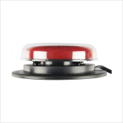


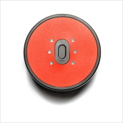
Jelly Bean Twist Blue2FT iSwitch ToFEEE BT
Pressure switch Bluetooth Switch Bluetooth Switch Contact-free proximity switch
*all images are from Inclusive Technology
A switch may be activated using:
- A hand or finger
- A foot or knee
- The head or chin
- A facial movement
- A compatible sip-and-puff interface
This can provide meaningful access even when the person has only one consistent movement. The process may initially feel slow, but speed often improves with practice and suitable adjustment.
Availability note: The AbleNet Jelly Bean Twist, Blue2 FT, Pretorian iSwitch and ToFFEE BT are listed by Inclusive Technology( Inclusive Technology), which accepts international orders. Delivery charges and import arrangements for Singapore should be confirmed at checkout. Stock, shipping costs, GST and warranty coverage may change.
Caregivers are encouraged to seek an occupational therapy or assistive-technology assessment before purchasing, as the appropriate switch, interface and mounting position depend on the user’s movement and intended device.
Head or Chin control
A head-tracking system allows a person to control a computer pointer using small head movements. Examples accessible in Singapore include the Quha Zono 2, which has a Singapore retailer, and the TrackerPro 2 Hands-Free Mouse, which is listed in Tech Able’s assistive-device library for local exploration or trial.
The person moves their head to position the cursor and can select an item by holding the pointer over it for a dwell click or by activating a separate switch. Quha lists DNR Wheels as its Singapore retailer. The TrackerPro 2 can be explored through Tech Able at Enabling Village, subject to the centre’s current trial or loan arrangements.
A chin-controlled joystick works on a similar principle. These options may help someone who has good neck or chin control but very limited use of their arms and hands. Repeated head movement may, however, cause fatigue, so the person should be observed over a meaningful period—not just during a short demonstration.
Availability note: Quha Zono 2 is supported through a Singapore retailer- DNR Wheels. TrackerPro 2 is available for local exploration through Tech Able, although purchase stock should be confirmed. These devices usually require individual assessment, mounting and adjustment by an occupational therapist or rehabilitation equipment provider. Enabling Village has more options recently MouseWare and GlassOuse + Bite Switch on display.
Sip-and-puff control
A sip-and-puff device uses a small tube connected to a pressure sensor. The person gives commands by gently sipping inward or puffing outward. Different strengths or patterns can be assigned to different actions. Example of one used by a local quadriplegic is Quadlife.
Depending on the setup, the system may help the person operate:
- A computer
- Communication software
- A scanning menu
- Environmental controls
- A compatible powered wheelchair
Professional assessment is important
An occupational therapist or assistive-technology professional should assess the person’s breathing control, seating, positioning and safety before a specialised system is purchased.
3. Look: using the eyes as a pointer
For someone who cannot reliably use their hands, voice, head or switches, eye-gaze technology may provide another route to communication and device control.
A specialised camera tracks where the person is looking. By holding their gaze on a letter, symbol, word or button, the person may be able to:
- Type a message
- Select communication symbols
- Generate speech
- Browse content
- Operate compatible applications
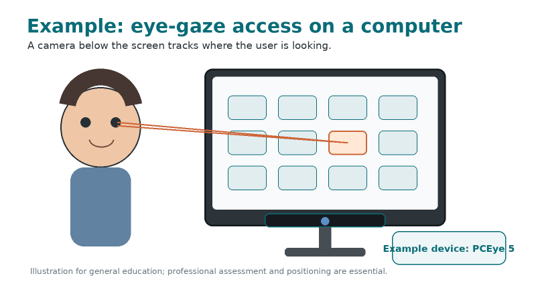
Eye gaze is not simply a matter of placing a tablet in front of the person. The system must take account of visual ability, eye control, seating and head position, screen distance, lighting, glare, fatigue, cognition and communication goals. Professional assessment is essential. Please note that, for y patients with deteriorating eyesight and strengths, and/or those who need to switch between near and far-sighted glasses, generally eye-gaze technology may be difficult and taxing for them as there is a need for for critical distance and position between screen cameras and their eyes. Another consideration before getting this for your loved ones, may be the learning curve for getting used to this interface since it can be quite different from what they are used to.
Availability note: Eye-gaze systems sold through Singapore retailer DNR Wheels include the Tobii Dynavox PCEye 5, TD Pilot and TD I-Series (including I-13 and I-16). These systems may allow a person to type, communicate and operate compatible applications using eye movement. Professional assessment and a device trial are strongly recommended before purchase.
4. Control the surroundings: smart-home technology
Sometimes independence is not about using a computer. It is being able to turn off the light without calling someone from another room.
Voice assistants, locally sold smart speakers, smart plugs and compatible home devices may allow a person to control:
- Lights
- Fans
- Televisions
- Air-conditioning
- Curtains
- Selected electrical appliances
For a person with very limited mobility, they can either use wireless remote control or being able to say “Turn on the fan” can provide immediate comfort and control. Caregivers do not need to convert the whole home into a futuristic command centre. Begin with one low-risk function that is used frequently, such as a bedside light.
Examples available in Singapore include Xiaomi Smart Speaker models, Google Nest Hub (2nd generation), and TP-Link Tapo smart plugs such as the P100 or P110M. Tapo smart plugs can work with compatible Google Assistant or Alexa devices. Check the appliance’s power requirements and do not use a smart plug with an appliance unless the manufacturer confirms it is suitable.
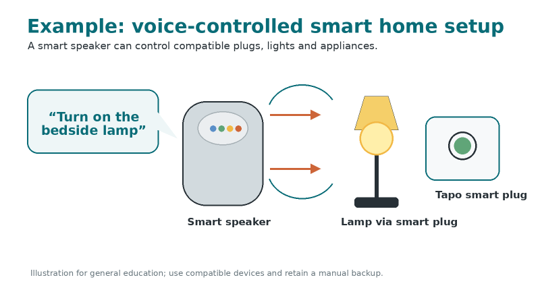
Availability in Singapore : Xiaomi smart speakers are sold through Xiaomi Singapore, Google Nest Hub is listed on the Google Store Singapore, and TP-Link Tapo smart plugs are sold through TP-Link Singapore and local retailers. China-market XiaoAI speakers are imported products and may require Mainland China region settings.
Keep a backup
Retain a manual control and plan for power, internet or device failure. Smart technology should support care—not become the only way to operate something essential.
Sometimes the most useful "technology" is a stand
A person may have excellent voice-control or eye-gaze software but still be unable to use it because the tablet is lying flat on the bed. An adjustable tablet stand, floor stand or stable clamp can position the screen at a comfortable height and angle.
Before buying one, check that it:
- Supports the device’s weight
- Attaches securely to the bed, table or wheelchair
- Does not wobble when the screen is used
- Keeps the charging port accessible
- Does not obstruct transfers or personal care
- Can be repositioned without excessive force
A simple tablet stand combined with built-in voice control may sometimes provide more practical independence than a costly device that is poorly positioned.
Try before you buy
Assistive technology can be expensive, and the most advanced product is not automatically the most suitable one.
Tech Able at Enabling Village is a joint initiative by SG Enable and SPD. It includes an assessment centre, assistive-device library and smart-home and workplace technology showcase. Visitors can explore displayed devices, and selected equipment may be available for trial or loan, subject to the provider’s arrangements.
An assessment may involve occupational therapists, speech and language therapists, assistive-technology specialists or other rehabilitation professionals. They can help compare possible access methods and consider how the equipment will be used at home.
A person may perform well with a device for five minutes but find it exhausting after half an hour. A trial provides a more realistic picture before the family commits to a purchase.
Financial support may be available
The SG Enable Assistive Technology Fund provides eligible persons with disabilities with a means-tested subsidy of up to 90% of the cost of approved assistive-technology equipment, subject to a $40,000 lifetime cap.
Applicants generally require an assessment and recommendation from an appropriate professional before the application is submitted.
Important: Do not purchase expensive equipment first and assume that reimbursement will be approved later. Check the prevailing requirements and obtain professional advice before placing an order.
Built-in accessibility features, such as phone voice control or switch-access settings, may be free. Associated hardware—such as switches, mounting systems, sensors or specialised cameras—may still involve costs.
A simple checklist for caregivers
| What is the goal? | Be specific. "Use technology independently" is broad. "Call my daughter without assistance" is clearer. |
| What ability can the person use reliably? | Consider speech, vision, breathing, head movement and any controlled movement of the limbs. |
| Is the method tiring? | Watch for pain, breathlessness, neck strain, eye fatigue or frustration. |
| Is the device positioned correctly? | Good seating and screen placement can make the difference between success and failure. |
| Can the caregiver support the setup? | Consider changing. cleaning, software updates, troubleshooting and safe positioning. |
| Is there a backup? | Plan for battery failure, loss of internet connection or changes in the person's condition. |
Independence may begin with one command
Assistive technology does not remove the need for caregivers. Instead, it may change the kind of help that is required.
The caregiver may still set up the device, charge it, adjust the stand or provide occasional troubleshooting. But the person receiving care may regain control over everyday choices.
“Open Messages.” “Call my son.” “Turn off the light.”
These may sound like small actions. But when someone no longer has to wait for another person to perform them, they can restore privacy, confidence and dignity.
Sometimes, independence does not begin with a dramatic breakthrough. It begins with one successful click, look, switch—or spoken command.
Information is accurate as of August 2026. Product examples are provided for general education and do not constitute endorsement. Availability, compatibility, prices, delivery arrangements and funding criteria may change. Caregivers should confirm current Singapore stock or international delivery and seek an assessment from a qualified occupational therapist, speech and language therapist or assistive-technology professional before purchasing specialised equipment.
References:
- Apple Support — Use Voice Control on iPhone or iPad
- Apple Support — Voice Control on Mac
- Microsoft Singapore — Windows 11 accessibility features
- Nuance — Dragon Professional v16
- Inclusive Technology — International delivery information
- Inclusive Technology — Switch access products
- Tech Able — TrackerPro 2 Hands-Free Mouse
- Quha — Where to buy (Singapore retailer listed)
- DNR Wheels — Eye-gaze technology in Singapore
- Xiaomi Singapore — Mi Smart Speaker
- Google Store Singapore — Nest Hub (2nd generation)
- TP-Link Singapore — Tapo smart plugs
- Tech Able at Enabling Village
- SG Enable — Assistive technology and assessment
You may also like
Senior Citizen Discounts and Benefits in Singapore: Dining
Senior Citizen Discounts and Benefits in Singapore: Recreation